
Laser
A Laser (DUT) has to be manually configured before it can be used in a Test Sequence. Their
Serial Number is used to indicate them in the TestRack UI interface.
Workflows
Section titled “Workflows”*️⃣ Creating a Laser
Section titled “*️⃣ Creating a Laser”- Navigate to the
Application > Lasersview on the left sidebar - Click the
+Button in the top-right corner - The
Create Laserdialog should now be open
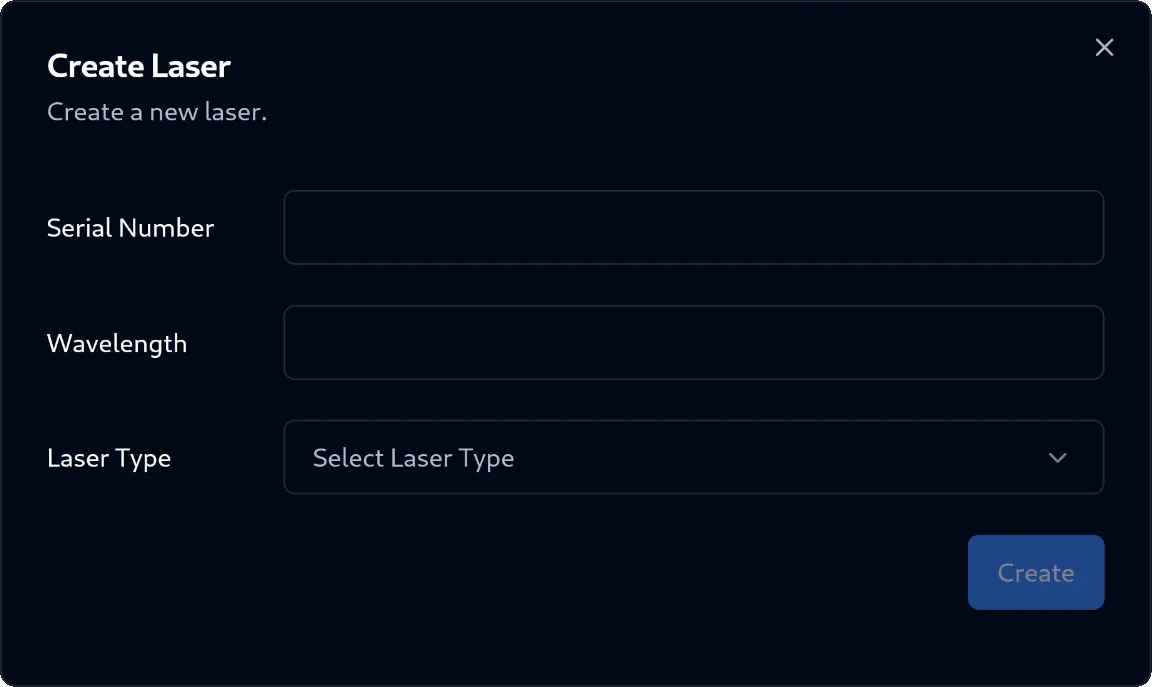
- In the dialog, fill out the required input fields:
- Serial Number:
Text(required) - Wavelength:
nm(required) - Laser Type:
Selection(required)
- Serial Number:
- Click on the
Createbutton in the bottom-right corner of the dialog - The Laser was successfully created
▶️ Testing a Laser
Section titled “▶️ Testing a Laser”To test a Laser, a matching Test Sequence Template has to be initialized with the Laser and started. For a detailed description of this process, please refer to the ▶️ Starting a Test Sequence Template workflow.