
Test Sequence
A Test Sequence is the initialized version of a
Test Sequence Template. It can be started to execute the
Test Sequence Template’s associated Tests
in their configured order. The detail view can be found in the left sidebar under Application > Running. Here all
previously and currently running Test Sequences are listed, with an indicator on the right to show
their current execution status. When one of the Test Sequences is selected, the right detail view
shows more details about the Test Sequence’s execution status, as well as progress updates for the
individual associated Tests.
Workflow
Section titled “Workflow”▶️ Starting a Test Sequence
Section titled “▶️ Starting a Test Sequence”To start a Test Sequence, its matching Test Sequence Template has to be initialized which then also automatically starts the sequence. For a detailed description of this process, please refer to the ▶️ Starting a Test Sequence Template workflow.
⏸️ Pausing a Test Sequence
Section titled “⏸️ Pausing a Test Sequence”- Navigate to the
Application > Runningview on the left sidebar - Select the Test Sequence to pause in the left table view
- Click on the
⏸button in the top-right corner of the detail view - Now the Test Sequence should be paused
▶️ Resuming a Test Sequence
Section titled “▶️ Resuming a Test Sequence”- Navigate to the
Application > Runningview on the left sidebar - Select the paused Test Sequence to resume in the left table view
- Click on the
▶button in the top-right corner of the detail view - Select the device you want to resume the Test Sequence on
- If the next test is a
Spectrumtest:- Select the Spectrum Device if it’s not occupied
- If the next test is a
RamporBurn-Intest:- Select a burn-in Device
- If the next test is a
- Now the Test Sequence should resume the last Test
⛔️ Aborting a Test Sequence
Section titled “⛔️ Aborting a Test Sequence”- Navigate to the
Application > Runningview on the left sidebar - Select the Test Sequence to abort in the left table view
- Click on the
⨯button in the top-right corner of the detail view - Now the Test Sequence should be aborted
❌ Deleting a Test Sequence
Section titled “❌ Deleting a Test Sequence”- Navigate to the
Application > Runningview on the left sidebar - Select the Test Sequence to delete from the left table view
- Click the
Deletebutton in the top right corner - The
Delete Test Templatedialog should now be open
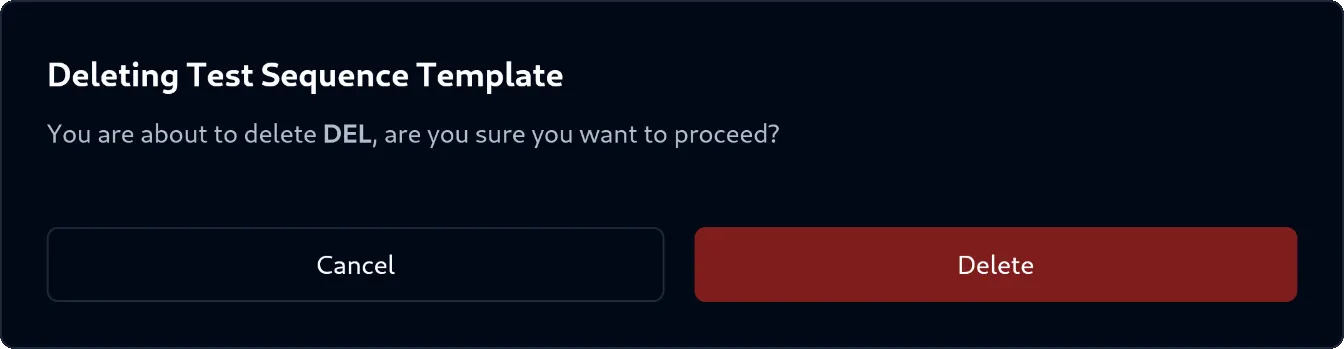
- In the dialog, confirm your action by clicking the
Deletebutton in the bottom-right corner of the dialog - The Test Sequence Template was successfully deleted